 TallyCopilot
How to Create a Company in TallyPrime: Settings to Get Right First
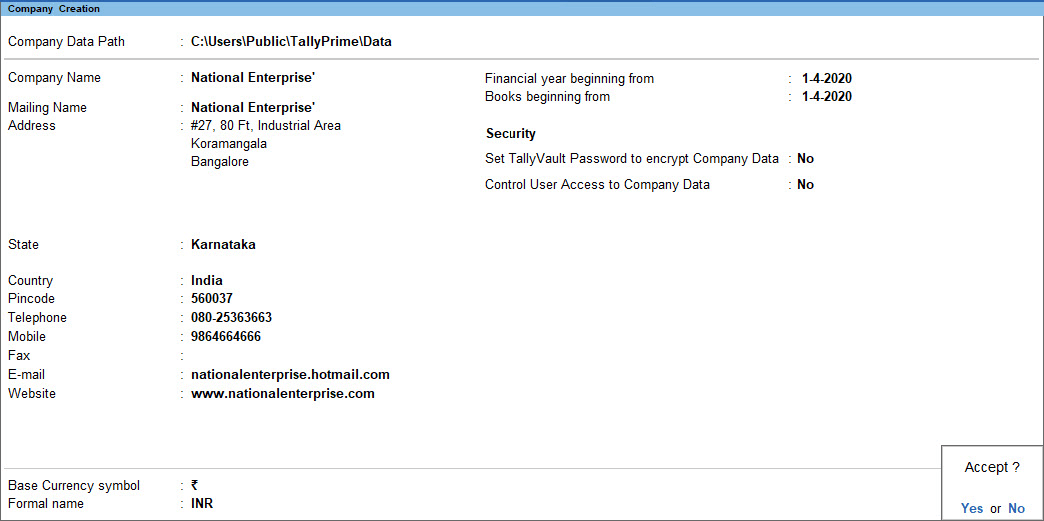
To create a company in TallyPrime, select Create Company, enter the business details and accounting dates, save, and configure the features the business needs. If another company is already open, use Alt+K > Create. TallyHelp company creation.
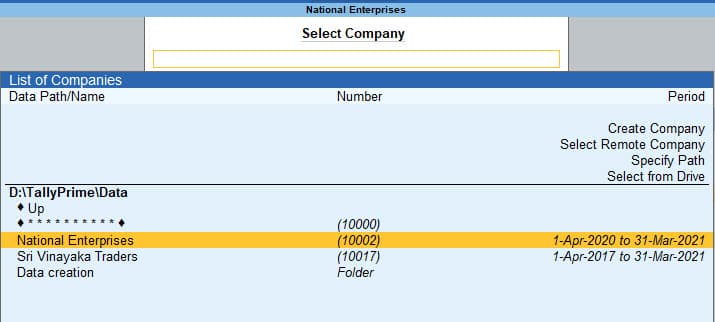
The Select Company screen includes Create Company, the starting option for setting up another set of books.
Official TallyPrime example; names, amounts and dates differ from the walkthrough. Source: TallyHelpThe form itself is straightforward, but deciding what the company should represent requires more attention. An incorrect starting date or incomplete opening balances can make later reports difficult to rely on.
This guide uses a new, fictional Indian business that starts keeping books on 1 September 2026. It also explains what changes when an existing business moves to Tally partway through a year.
Decide what this company will contain
A Tally company contains the records you will use for a business. Before creating one, answer three practical questions.
- Are you creating a company for a new business, a practice exercise, or an existing business moving from another system? Each requires a different starting setup.
- What is the earliest transaction you plan to record? The date you installed the software may not be the right starting date.
- Who will provide and verify the opening balances? For an existing business, these should come from previous records and supporting documents.
For a practice company, use a clear name such as Aster Practice. For live records, use the business's correct name and mailing details.
Fill in the company details
On the Company Creation screen, enter the name, mailing name, address, country and state. Review the data location and base currency. Enter the financial year and books beginning dates, then save with Ctrl+A. TallyPrime opens Company Features after creation. Official company setup instructions.

Base Currency Information shows the currency symbol, formal name and decimal settings to review during company setup.
Official TallyPrime example; names, amounts and dates differ from the walkthrough. Source: TallyHelpReview all the details once before saving. An old address may no longer be correct, and leaving a practice name in a live company can cause it to appear on documents sent to customers or suppliers.
Also, note where the company data is stored. If someone else handles backups, they should know which data needs to be backed up.
Understand the two accounting dates
Financial year beginning from is the date when the financial year starts. Books beginning from is the date when you want to start recording transactions. Usually, both dates are the same, but the books date can be different if needed. TallyHelp on accounting dates.
For our new-business example:
| Setting | Example value | Reason |
|---|---|---|
| Financial year beginning | 1 April 2026 | Start of the financial year used in this example |
| Books beginning | 1 September 2026 | The fictional business starts its books on this date |
Now consider a different case. Aster has traded since April but starts using Tally in September. The installation date alone does not determine the accounting approach.
A business can enter all transactions from April onward. Or, it can enter the agreed opening balances as of September and record only the transactions after that date in TallyPrime. If you choose the second option, keep the earlier records available for reference and plan how you will prepare full-year reports.
Do not enter an opening balance for September and then enter the earlier transactions that created that balance. This would count the same transactions twice.
Changing the dates later can also affect existing records. TallyPrime warns that moving the starting dates forward can remove earlier transactions. Always review the data and take a backup before changing established company dates. TallyHelp date-change guidance.
Company Creation includes the financial year beginning and books beginning fields at the upper right.
Official TallyPrime example; names, amounts and dates differ from the walkthrough. Source: TallyHelpChoose features around the business
The F11 Company Features screen controls areas such as accounts, inventory and taxation. Enable the relevant functions and complete their setup. GST requires applicable registration and tax details; inventory requires the business to maintain stock records. TallyHelp Company Features.
Different businesses need different settings. A stationery trader may need to track quantities, units, and stock locations, while a design consultancy may mainly need service invoices, expenses, and customer balances.
For a short learning exercise, a simple accounts-only company is enough. For a real business, make sure all required features are enabled. The settings should be decided with someone who understands the business's accounting and daily operations.
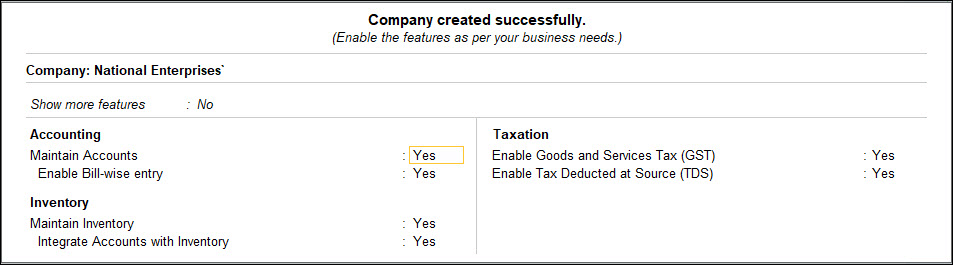
The features screen lets you choose accounting, inventory and tax options. The enabled options here are Tally’s example, not the recommended settings for the practice exercise.
Official TallyPrime example; names, amounts and dates differ from the walkthrough. Source: TallyHelpPrepare opening balances as a complete position
Company creation does not establish everything the business owns and owes. Those figures belong in the appropriate accounts and, where relevant, stock records.
Suppose an existing business moves to Tally with this simplified position:
| Opening balance | Debit | Credit |
|---|---|---|
| Cash | Rs 10,000 | — |
| Bank | Rs 40,000 | — |
| Customer balances | Rs 30,000 | — |
| Supplier balances | — | Rs 20,000 |
| Proprietor capital | — | Rs 60,000 |
| Total | Rs 80,000 | Rs 80,000 |
This example contains no inventory, fixed assets, taxes or loans. A real business must include its actual balances. Capital is a stated fact in this illustration; do not use it as an unexplained balancing figure in a migration.
The Rs 30,000 customer total also needs detail. Which customers owe it? Which invoices remain unpaid? A total that balances mathematically can still be inadequate for collecting money.
Before recording new transactions, check that the totals and supporting lists match.
Check the company before everyday use
Open the newly created company and confirm its identity, dates and enabled features. Then create the required ledgers and review the opening Trial Balance.
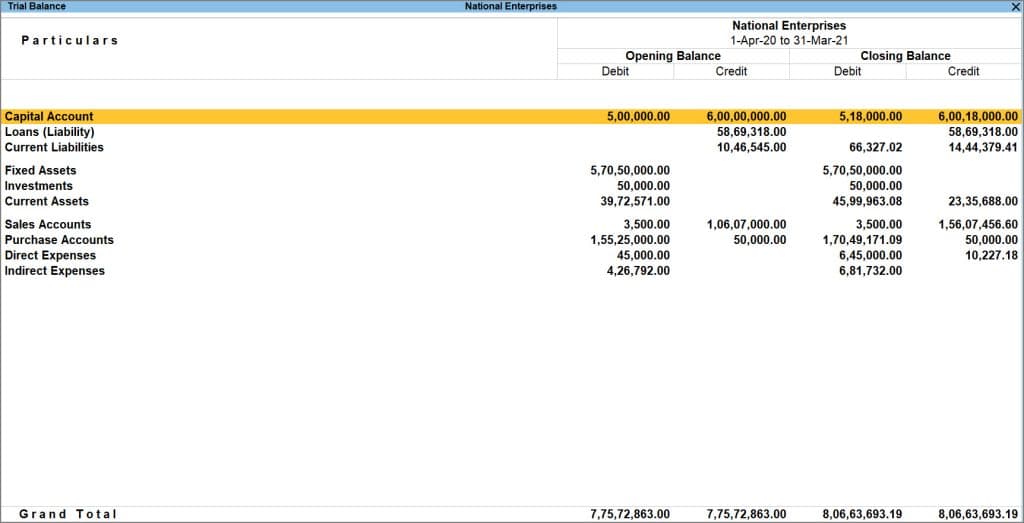
Trial Balance with Opening Balance columns helps you compare the starting debit and credit totals with the agreed records.
Official TallyPrime example; names, amounts and dates differ from the walkthrough. Source: TallyHelpIf the books belong to an existing business, compare the opening reports with the agreed cutover records. Ask someone other than the person who entered the balances to review the larger or unusual amounts.
A clean setup should let the team answer a simple question: what is the starting position, and where did each amount come from?
Your next step
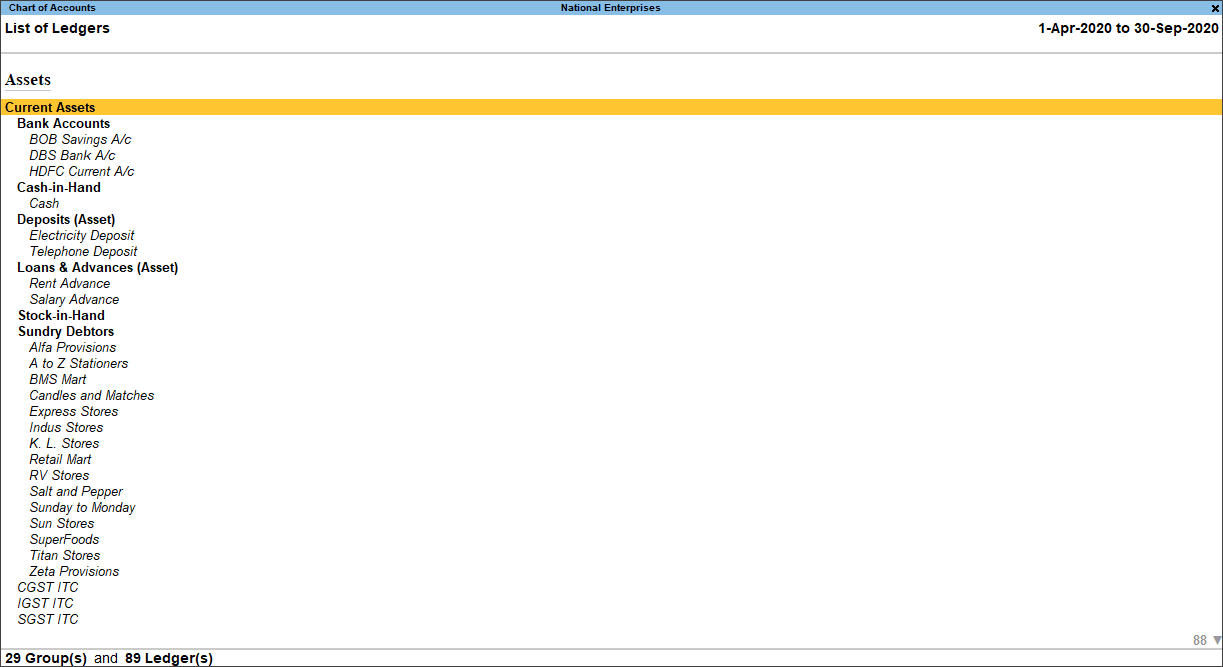
Create the accounts you need for the first few transactions. The ledgers and groups guide explains how to name them, choose their groups and avoid splitting one customer's balance across duplicate records.
Keep reading
 Tally basicsLedgers and Groups in TallyPrime: How to Create Them and Choose the Right GroupLearn how to create ledgers in TallyPrime, choose the right groups and avoid duplicate accounts, with customer, supplier and expense examples.
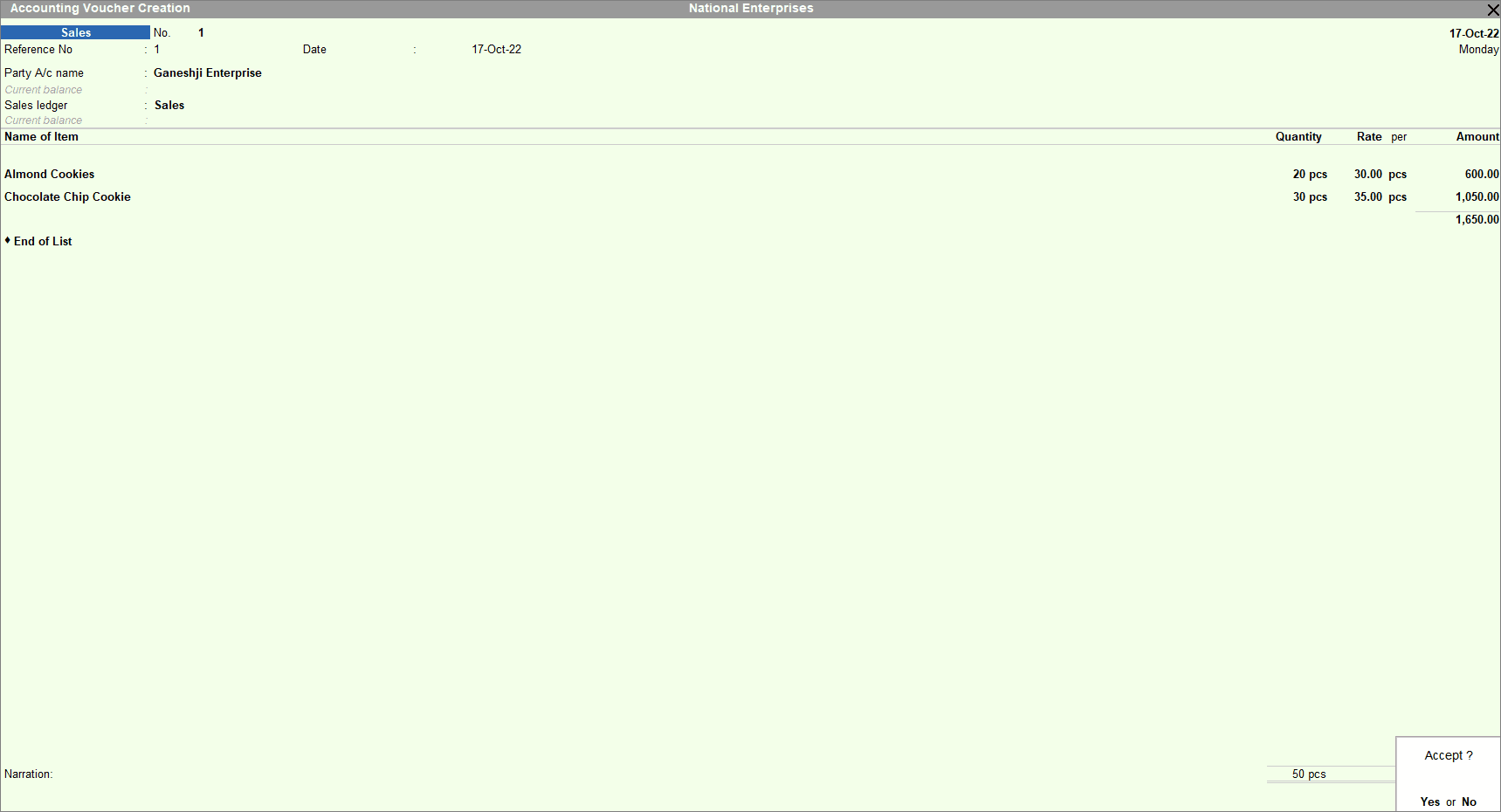 Tally basicsVoucher Types in TallyPrime: Which One Should You Use?Choose the right TallyPrime voucher for sales, purchases, payments, receipts, transfers and returns, with examples showing the accounting effects.
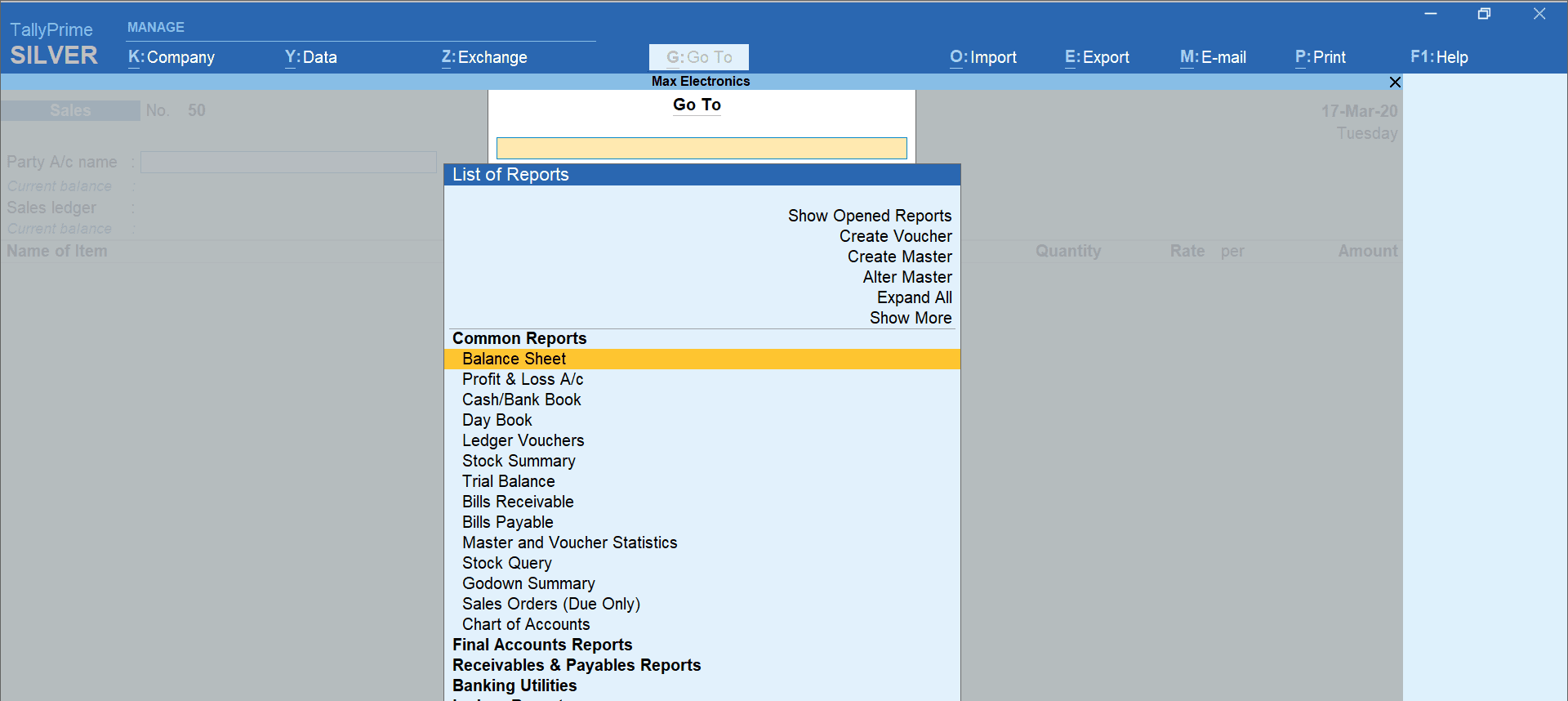 Tally basicsTallyPrime Shortcut Keys for Everyday Accounting WorkFind TallyPrime shortcut keys for vouchers, navigation and reports, plus a practice routine and checks for keyboard or remote-session problems.