 TallyCopilot
TallyPrime Shortcut Keys for Everyday Accounting Work
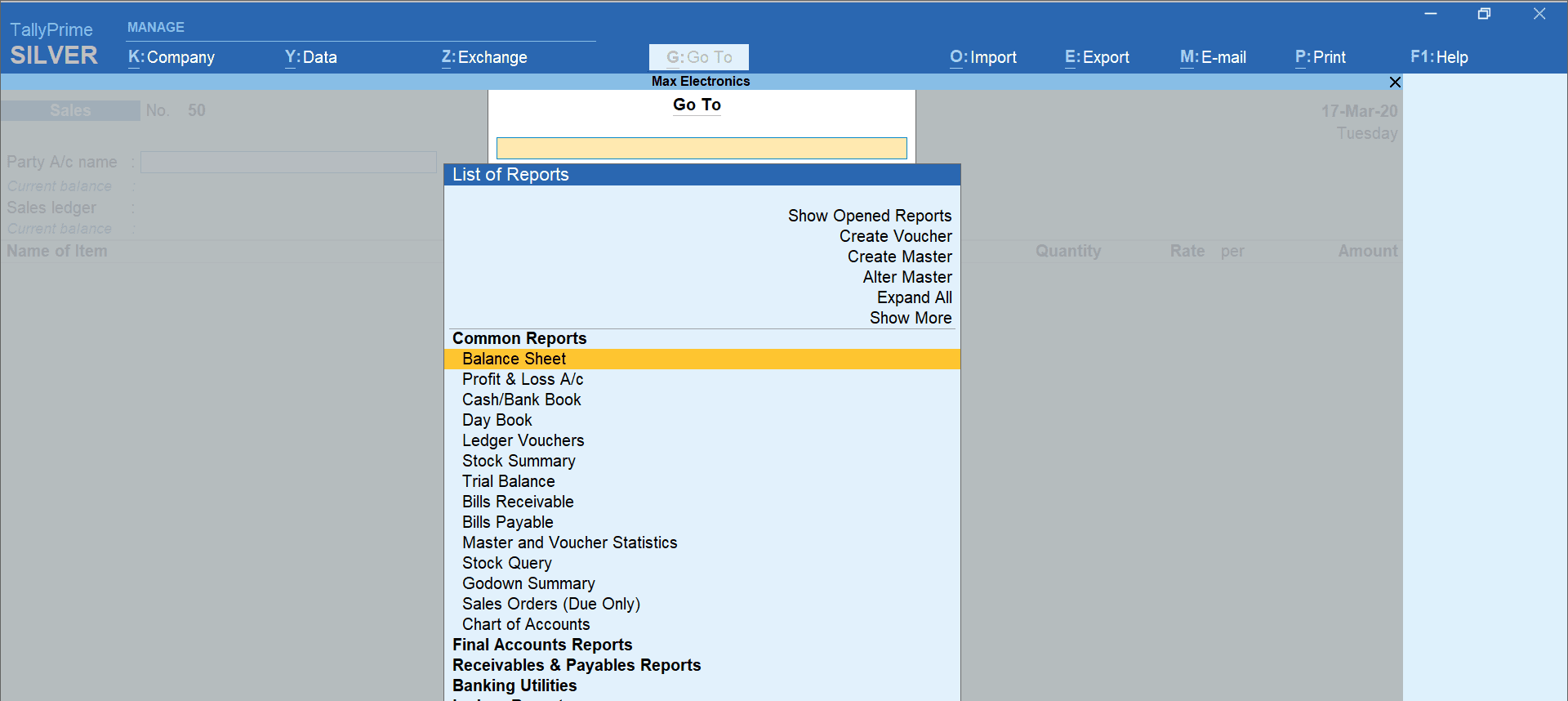
Learn TallyPrime shortcuts around the work you repeat. Opening a report, selecting a voucher and checking the date are useful from the first day. A long list of unfamiliar key combinations is hard to remember.
The reference below is for TallyPrime on Windows. These shortcuts may work differently depending on the screen or active field. Check the labels shown in the application when a key does something unexpected. Official TallyPrime shortcut reference.
Move through the application
| Task | Shortcut |
|---|---|
| Go To | Alt+G |
| Go back | Esc |
| Accept or save | Ctrl+A |
| Company menu | Alt+K |
| Company Features | F11 |
| Current screen configuration | F12 |
| Select and open a company | Alt+F3 |
| Switch between loaded companies | F3 |
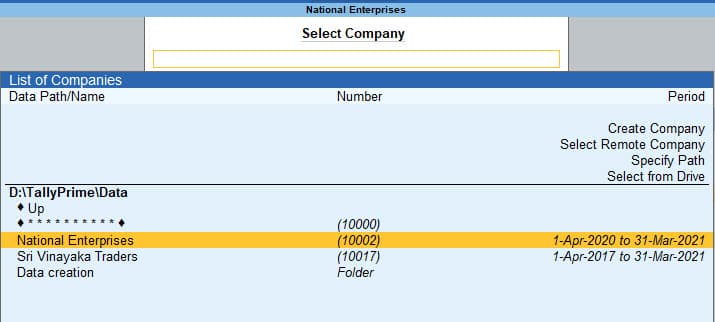
Alt+F3 opens Select Company. The list shows each available company and its accounting period.
Official TallyPrime example; names, amounts and dates differ from the walkthrough. Source: TallyHelpUse Go To for the reports you visit regularly. Instead of remembering a route through several menus, think of the report's name and look for it there.
Before saving, pause at the fields most likely to change between transactions. Speed is useful only if the date, party and amount are right.
The Go To menu provides access to reports such as Day Book, Balance Sheet and Trial Balance.
Official TallyPrime example; names, amounts and dates differ from the walkthrough. Source: Tally SolutionsSelect an accounting voucher
These keys select voucher types in the voucher-entry context.
| Voucher | Shortcut |
|---|---|
| Contra | F4 |
| Payment | F5 |
| Receipt | F6 |
| Journal | F7 |
| Sales | F8 |
| Purchase | F9 |
| Credit Note | Alt+F6 |
| Debit Note | Alt+F5 |
The choices above follow Tally's current shortcut table. Older Tally.ERP 9 material uses different keys for some actions, including credit and debit notes. Tally's product-specific comparison.
And if you are unsure which voucher to select, use the voucher type guide first. These function keys save time, but the right accounting treatment always comes first.
Handle entry and reporting tasks
| Task and context | Shortcut |
|---|---|
| Change voucher date | F2 |
| Change reporting period | Alt+F2 |
| Create a master from a selection field | Alt+C |
| Change voucher mode or report view | Ctrl+H |
| Export current voucher or report | Ctrl+E |
| Print current voucher or report | Ctrl+P |
| Open contextual help | Ctrl+F1 |
These mappings are documented in the official shortcut reference. Context matters: Alt+C has a different use in an amount field, so look at the field before pressing it.
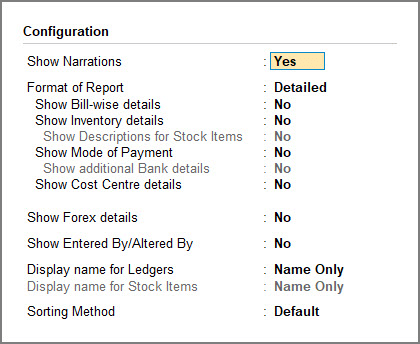
F12 Configuration in Day Book controls report details, including narrations and bill-wise information. Available options depend on the current screen.
Official TallyPrime example; names, amounts and dates differ from the walkthrough. Source: TallyHelpPractise a complete task
Use the fictional payment from our beginner tutorial: Aster Practice pays Rs 500 for office stationery. If you have already entered that payment, use it for the review steps below instead of creating it again.
First, open the practice company you want to use. Use Go To to open Voucher Creation and select Payment. Check that the correct voucher type is selected before entering any details.
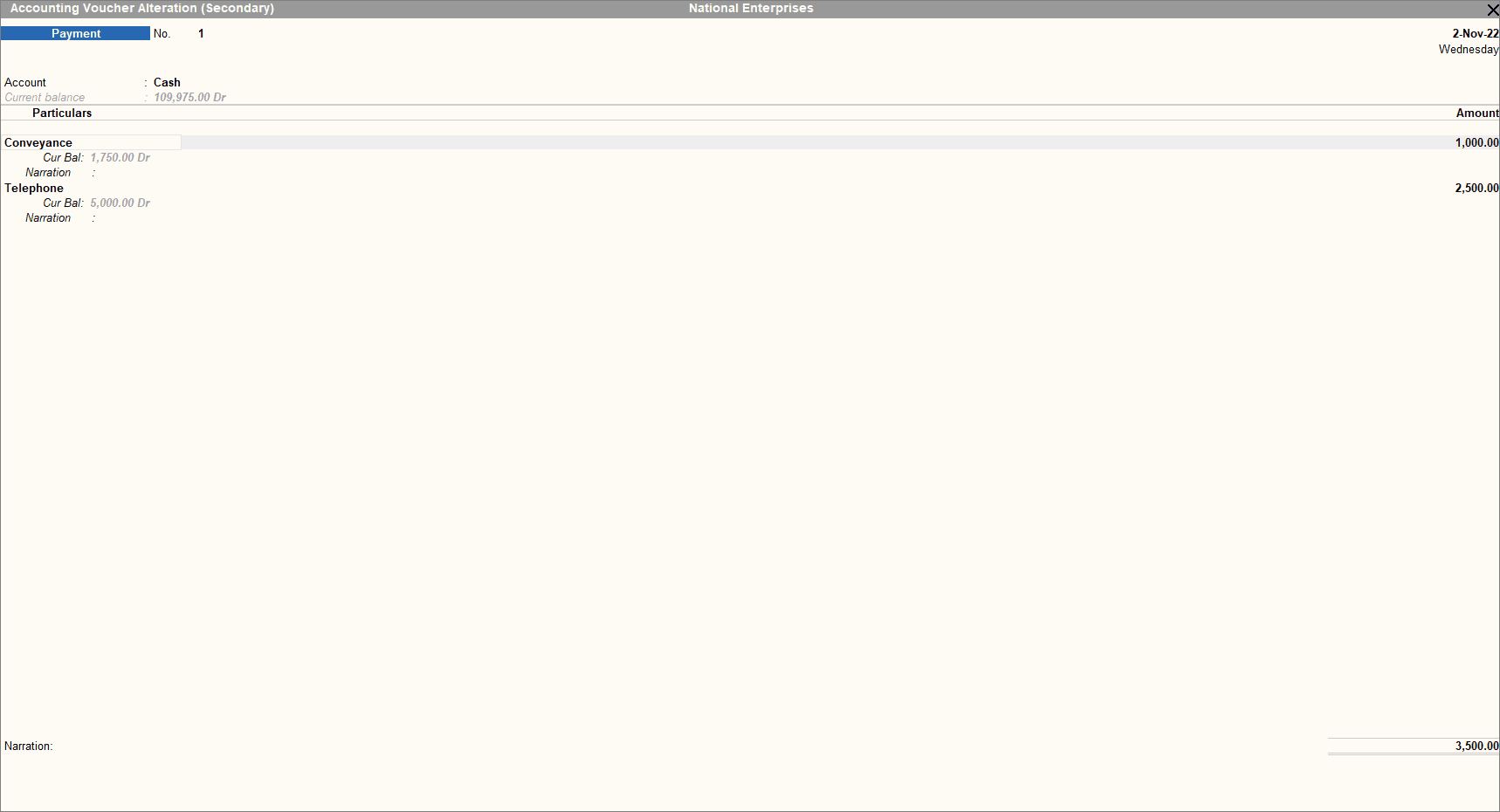
The Payment label at the upper left identifies the voucher type. Account and Particulars identify the cash or bank account and the other ledger.
Official TallyPrime example; names, amounts and dates differ from the walkthrough. Source: TallyHelpSet the date carefully and check it on the screen. Enter the transaction details, check the amount with the original receipt, and save it once.
Then open a Day Book through Go To. Select a date range that includes the payment and check that the transaction is recorded correctly. Finally, review the cash account to make sure the balance has changed by the correct amount.
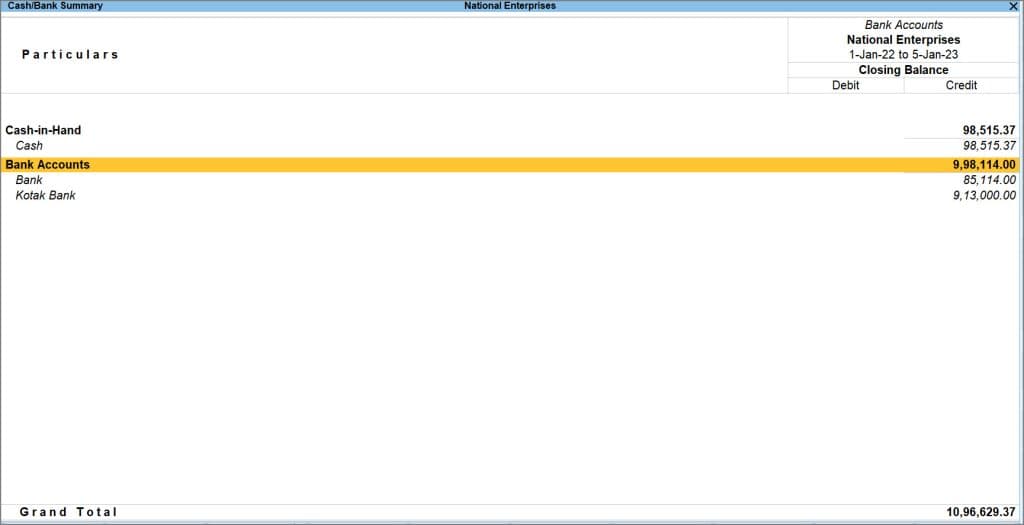
Cash/Bank Summary displays the Cash closing balance for the selected period, supporting the final balance check.
Official TallyPrime example; names, amounts and dates differ from the walkthrough. Source: TallyHelpPractising this whole sequence builds a more useful habit than opening six voucher screens in a row. You learn how to get to a task, complete it and establish that it worked.
When a shortcut does not work
First, check the active screen because the same key can do different things in voucher entry and reports. Read the action labels on the screen before trying another shortcut.
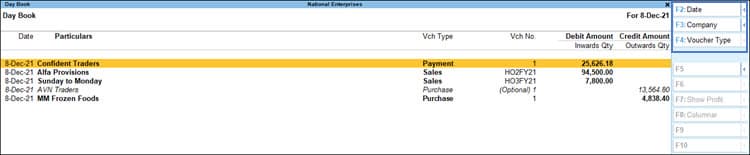
The Day Book’s right-hand action labels show the commands available on that screen. Check these labels when a shortcut behaves unexpectedly.
Official TallyPrime example; names, amounts and dates differ from the walkthrough. Source: TallyHelpNext, check keyboard focus. If you are using a remote Windows session, click inside it before trying the shortcut. Otherwise, the shortcut may be handled by your computer instead of TallyPrime.
If the top-row keys control volume or brightness, use the Fn key or change the function-key setting. The exact setting depends on your keyboard and remote-access application.
If the command still does not work, check the user's permissions, enabled features, and TallyPrime release. If the option is unavailable, use the visible menu or contextual help instead of repeatedly trying the same shortcut.
Build a small reference for your role
For the first week, keep only the commands you repeatedly need beside the keyboard. Someone entering invoices will develop a different routine from someone reviewing accounts.
Write down the task beside each shortcut. “F5” on its own is easy to confuse. “Payment voucher during entry” is easier to apply correctly.
Leave deletion and cancellation out of early speed drills. Those actions affect records and should follow an understood review process. Learn to inspect a saved entry confidently before practising ways to remove one.
As you become comfortable, add one or two commands from Tally's official reference when a real task calls for them. The goal is a routine you can repeat accurately, with enough attention left to notice an unusual amount or the wrong company name.
Keep reading
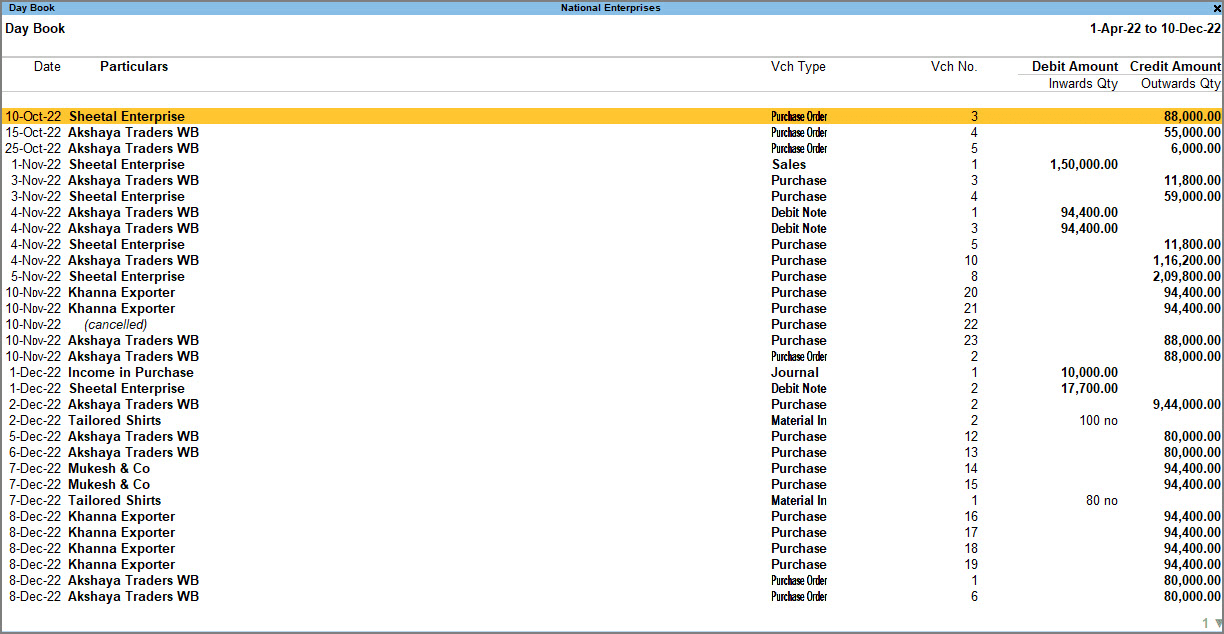 Tally basicsWhat Is Tally? Accounting, Inventory and Business Uses ExplainedUnderstand what Tally does with a simple business example covering sales, payments, stock and profit, plus where TallyPrime and AI fit.
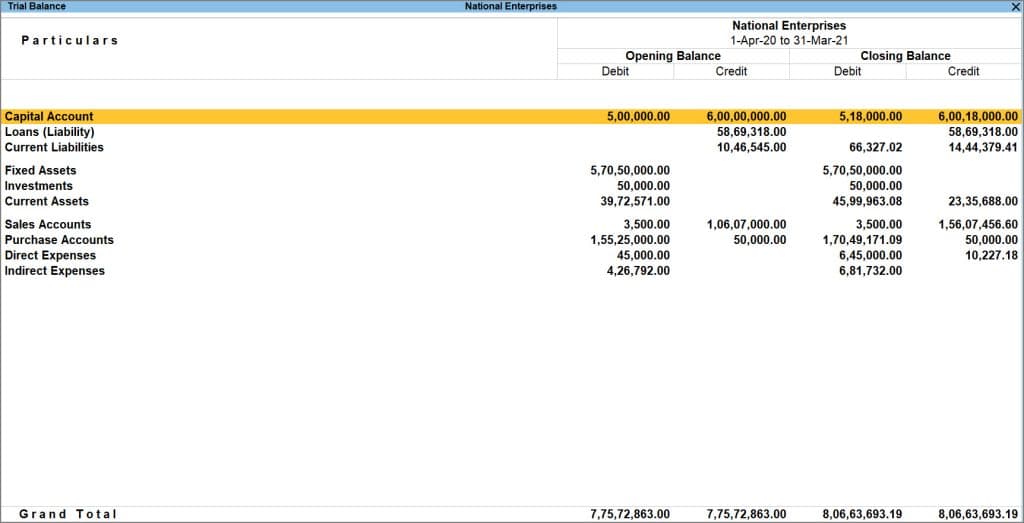 Tally basicsHow to Use TallyPrime: From Company Setup to Your First TransactionLearn TallyPrime with a practice company, opening balances and one payment entry. Check the Day Book, cash balance and Trial Balance afterward.
 Tally basicsHow to Create a Company in TallyPrime: Settings to Get Right FirstCreate a company in TallyPrime and understand financial year dates, books beginning dates, company features and opening balance checks.