 TallyCopilot
How to Use TallyPrime: From Company Setup to Your First Transaction
The quickest way to understand TallyPrime is to record one transaction and then follow it through the reports. You should be able to explain the result yourself before relying on the screen.
This beginner exercise uses a fictional company called Aster Practice. It starts with Rs 10,000 in cash and records a Rs 500 office stationery expense. The expected cash balance after the transaction is Rs 9,500.
Before you begin
You need TallyPrime installed and access to create a company and enter transactions. Download the application through Tally's official channels and follow its installation guidance. The standard installer is a Windows application. Install TallyPrime.
If you use a Mac through a remote Windows machine, the entries are made in the Windows session. Make sure the session has keyboard focus before using shortcuts.
Keep this sample beside you:
| Item | Value |
|---|---|
| Company | Aster Practice |
| Financial year beginning | 1 April 2026 |
| Books beginning | 1 September 2026 |
| Opening cash | Rs 10,000 debit |
| Opening proprietor capital | Rs 10,000 credit |
| Transaction date | 1 September 2026 |
| Expense | Rs 500 for office stationery |
Opening capital explains where the opening cash came from. Entering cash alone would leave the starting accounts incomplete.
Set up the practice company
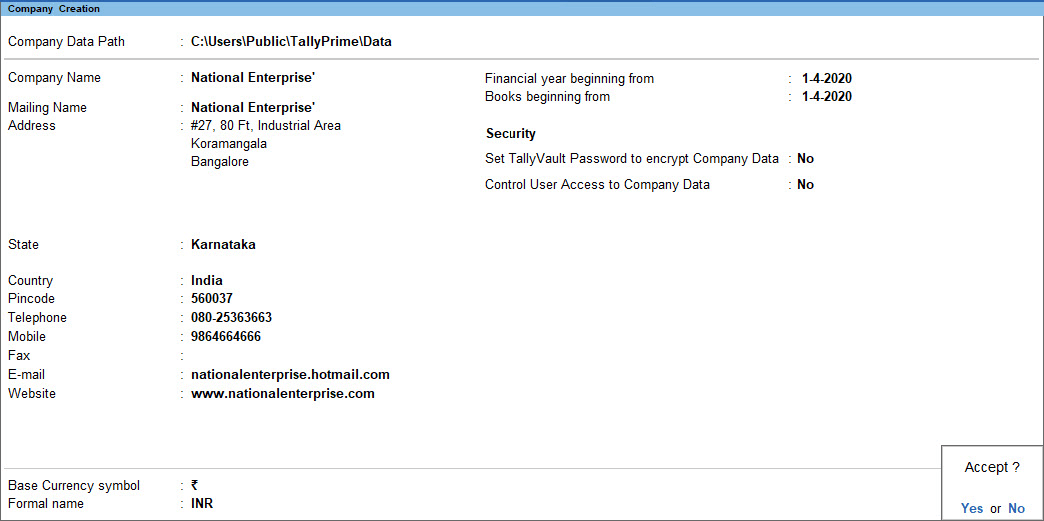
Select Create Company when starting TallyPrime, or use Alt+K > Create if a company is already open. Name it Aster Practice, use the dates above and save the company. Our company creation guide explains the fields and the distinction between the two dates. TallyHelp company setup.
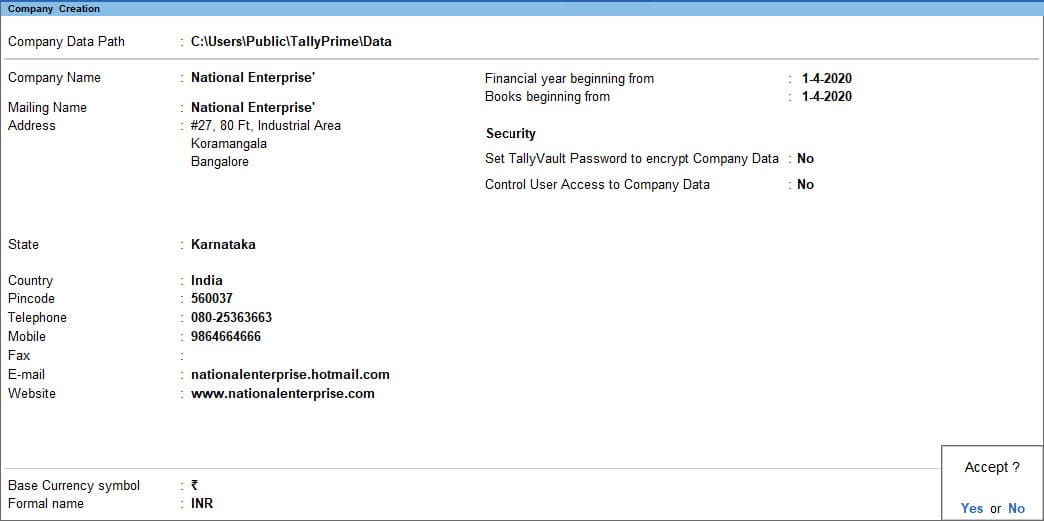
Company Creation shows the name, data path and accounting dates to enter for the practice company.
Official TallyPrime example; names, amounts and dates differ from the walkthrough. Source: TallyHelpIn Company Features, keep Maintain Accounts enabled. For this fresh exercise, turn off Maintain Inventory and leave GST disabled. The example does not contain a stock purchase or a tax invoice. Company Features in TallyPrime.
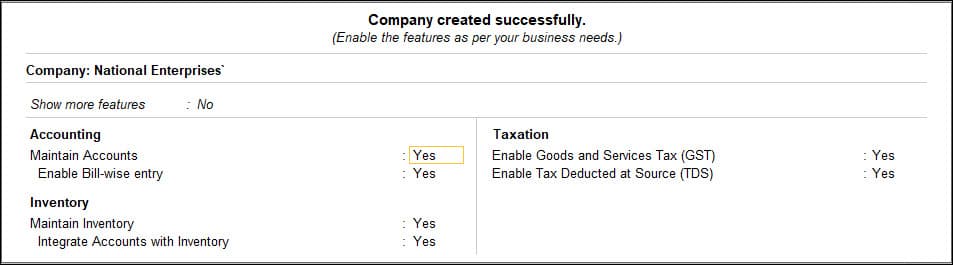
Company Features contains Maintain Accounts, Maintain Inventory and GST. The pictured settings are Tally’s example; use the accounts-only settings in the instruction above.
Official TallyPrime example; names, amounts and dates differ from the walkthrough. Source: TallyHelpBefore continuing, read the company name shown in TallyPrime. Make this a habit whenever multiple businesses are available on the same machine.
Prepare the accounts
Use Alt+G > Alter Master > Ledger to open the existing Cash ledger. Give it an opening balance of Rs 10,000 Dr.
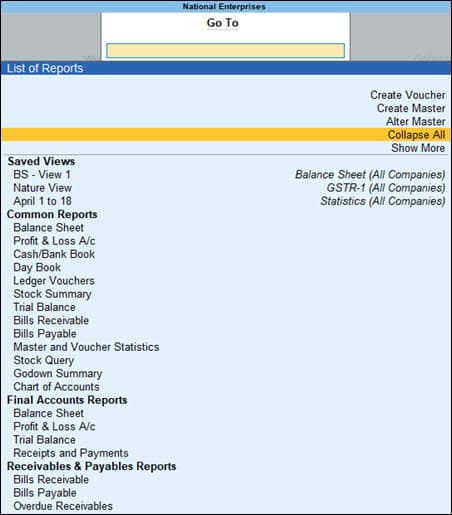
The Go To menu includes Alter Master and Create Master for opening the ledger screens.
Official TallyPrime example; names, amounts and dates differ from the walkthrough. Source: TallyHelpThen use Alt+G > Create Master > Ledger to create these accounts:
| Ledger | Under | Opening balance |
|---|---|---|
| Proprietor Capital | Capital Account | Rs 10,000 Cr |
| Office Stationery | Indirect Expenses | Zero |
Save each screen with Ctrl+A. These are the standard ledger creation and alteration routes. TallyHelp ledger instructions.
The stationery in this exercise is consumed in running the office. It is not merchandise bought for resale. That is why we are treating it as an office expense.
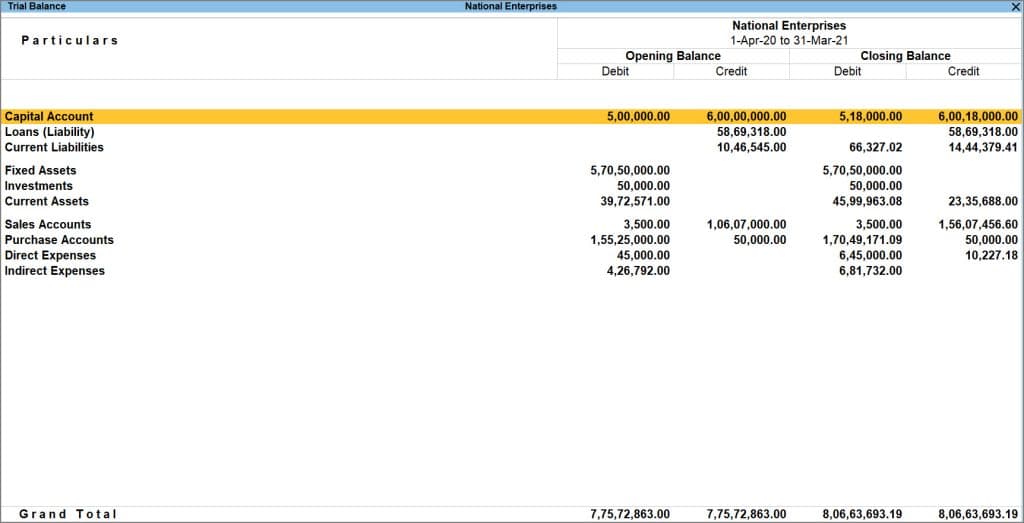
Open Trial Balance through Go To and check the opening position. Cash should carry Rs 10,000 debit and capital Rs 10,000 credit. If you have other entries or balances, use a clean practice company before comparing your results with this guide.
Trial Balance can show opening debit and credit balances side by side. Use the opening balances for your practice company when checking the totals.
Official TallyPrime example; names, amounts and dates differ from the walkthrough. Source: TallyHelpRecord the payment
Open Alt+G > Create Voucher, then choose F5 Payment. Set the date to 1 September 2026.
In Single Entry mode, fill in:
- Account: Cash.
- Particulars: Office Stationery.
- Amount: 500.
- Narration: Office stationery for internal use, paid in cash, receipt ST-001.
If the screen shows debit and credit columns instead, use Ctrl+H > Single Entry for this walkthrough. Review the values and press Ctrl+A to save. TallyHelp on payment entry modes.
The narration gives the next person enough information to identify the payment. A reference such as ST-001 is useful only if the supporting receipt can actually be found.
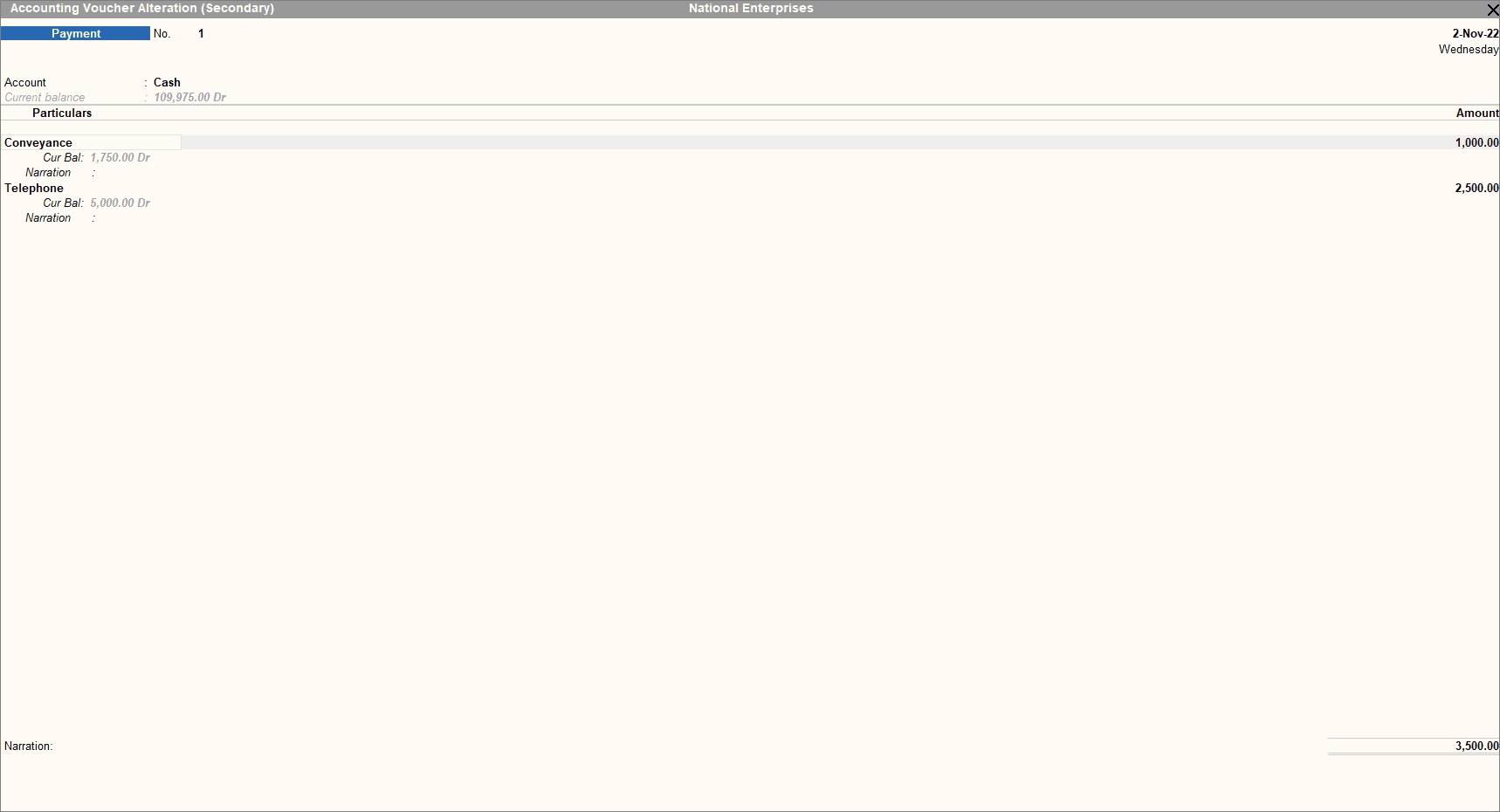
Payment voucher in single-entry mode. Account identifies the cash or bank account; Particulars identifies the expense or other ledger.
Official TallyPrime example; names, amounts and dates differ from the walkthrough. Source: TallyHelpCheck the result before entering anything else
Open Day Book through Alt+G and include 1 September 2026 in the date range. You should find one Rs 500 Payment voucher. Open it and compare the date, Cash account, Office Stationery ledger and narration. TallyHelp on Day Book.
Then inspect the balances. Assuming you followed this exercise without additional transactions, the results should be:
| Check | Expected result |
|---|---|
| Cash closing balance | Rs 9,500 Dr |
| Office Stationery expense | Rs 500 Dr |
| Proprietor Capital | Rs 10,000 Cr |
| Trial Balance debit total | Rs 10,000 |
| Trial Balance credit total | Rs 10,000 |
| Profit and Loss result | Rs 500 loss |
The loss is expected as this practice company has incurred an expense and has recorded no income. The capital contribution is not sales revenue.
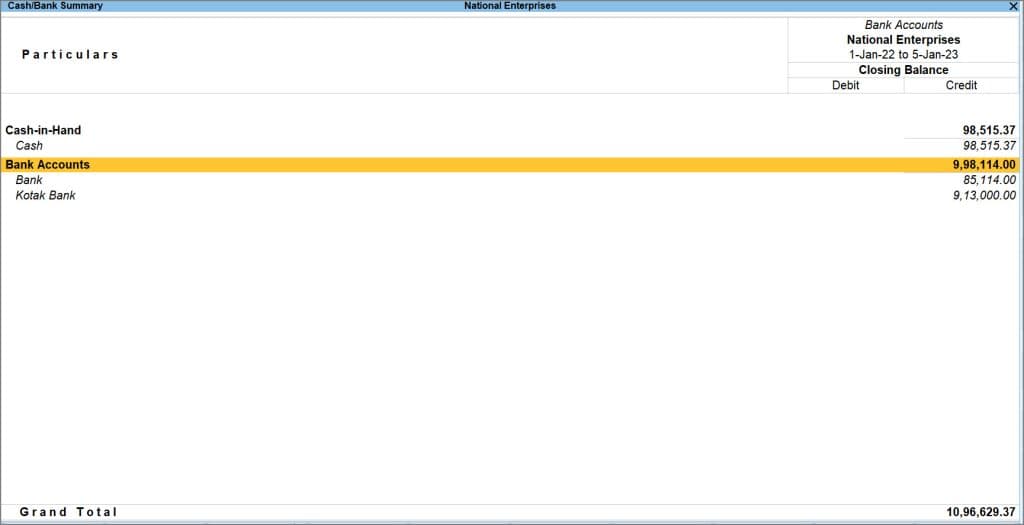
Cash/Bank Summary shows the Cash ledger and its closing balance. Compare your practice-company balance with the expected Rs 9,500 debit above.
Official TallyPrime example; names, amounts and dates differ from the walkthrough. Source: TallyHelpThese checks teach more than the act of saving. They show that a cash payment reduces an asset and recognizes an expense without changing the amount of capital originally introduced.
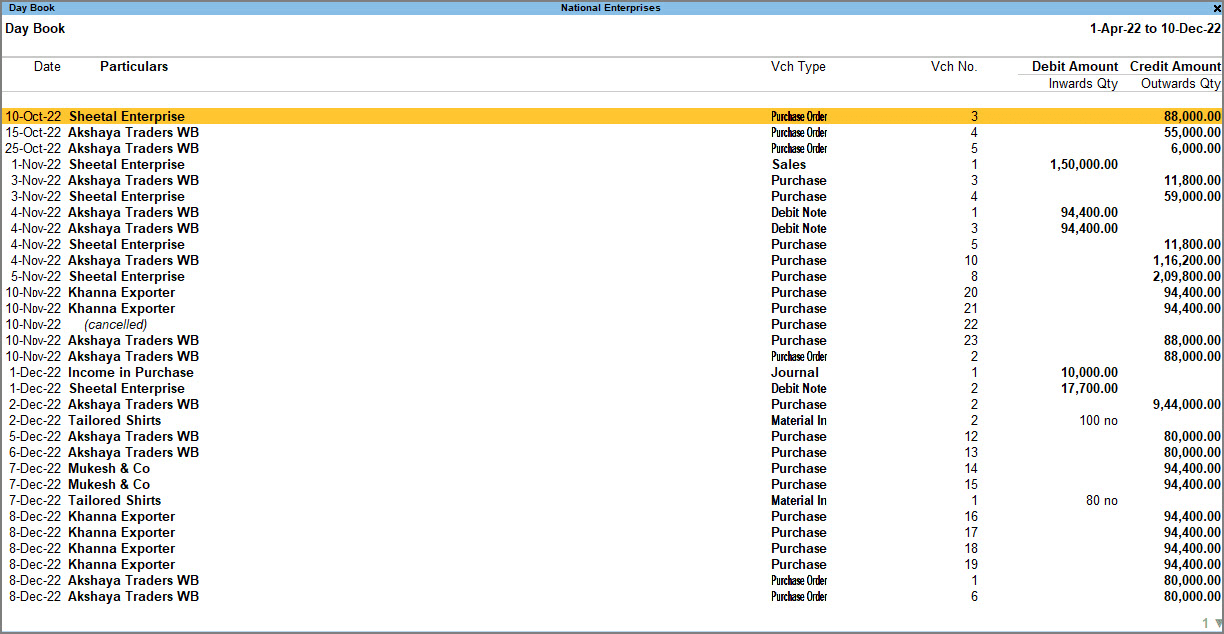
Review recorded vouchers in the Day Book before checking the individual ledger balances.
Official TallyPrime example; names, amounts and dates differ from the walkthrough. Source: TallyHelpIf your result is different
Cash is Rs 10,000. Look for an unsaved or optional voucher, a different date range, or a payment recorded from another account.
Cash is Rs 9,000. Search for two Rs 500 payments. Repeating the exercise in the same company can create a second valid-looking entry.
The opening Trial Balance did not agree. Revisit both the Cash and Proprietor Capital opening balances. Do not invent a balancing expense.
The voucher is missing. Check the company and period first. Creating the entry again before searching can cause duplication.
These are checks to investigate, not proof of a particular cause. Read the voucher and the starting balances before changing anything.
What to learn next
Repeat the exercise only in a fresh practice company, or clearly label any additional transactions and recalculate the expected balances.
Next, learn how ledgers and groups work, then use the voucher type guide to move on to sales, customer receipts and supplier payments. Once you can predict an entry's effect, the rest of Tally becomes much easier to navigate.
Keep reading
 Tally basicsHow to Create a Company in TallyPrime: Settings to Get Right FirstCreate a company in TallyPrime and understand financial year dates, books beginning dates, company features and opening balance checks.
 Tally basicsLedgers and Groups in TallyPrime: How to Create Them and Choose the Right GroupLearn how to create ledgers in TallyPrime, choose the right groups and avoid duplicate accounts, with customer, supplier and expense examples.
 Tally basicsVoucher Types in TallyPrime: Which One Should You Use?Choose the right TallyPrime voucher for sales, purchases, payments, receipts, transfers and returns, with examples showing the accounting effects.